
Admin Console — Project Sessions
The Sessions tab within a project's Admin Console view provides detailed session monitoring and management for the selected project.
Navigation: Admin Console → Projects → [Select Project] → Sessions Tab
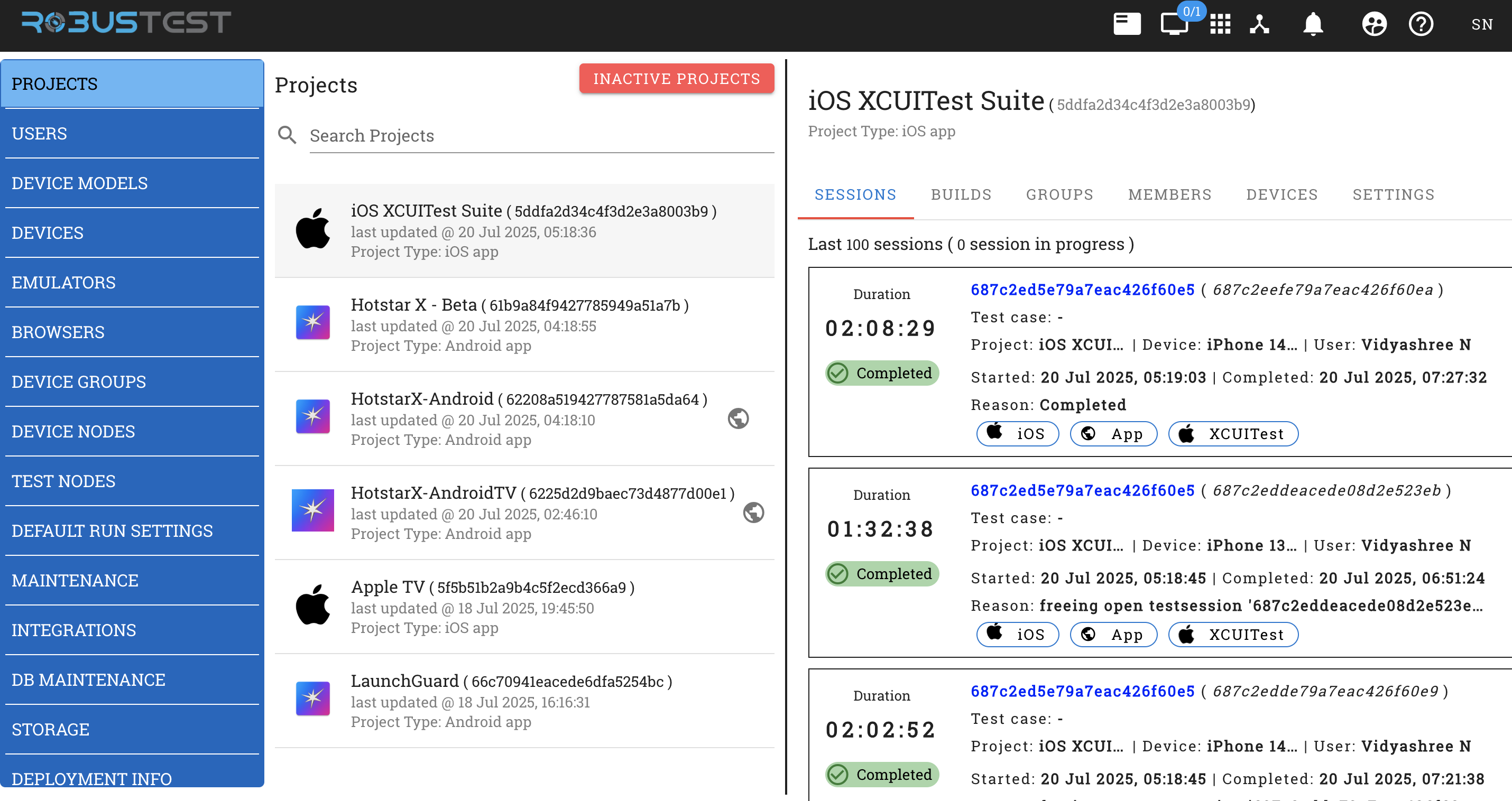
Overview
The Project Sessions interface allows administrators to monitor, analyse, and manage all test sessions associated with a specific project.
Accessing Project Sessions
- Click the Admin Console icon in the platform header.
- Select Projects from the left sidebar.
- Select the desired project from the projects list.
- Click the SESSIONS tab.
Session List
The sessions list displays the last 100 sessions for the project. Each session entry shows:
- Duration — Total session execution time
- Session ID — Unique identifier with a clickable link
- Test Case — Associated test case (for automation sessions)
- Device — The specific device used
- User — Who initiated the session
- Started — Session start date and time
- Completed — Session completion date and time
- Status — Completion status
- Termination Reason — Why the session ended
- Platform Tags — Framework and platform indicators (e.g. iOS, Android, XCUITest)
Session Types
Sessions can be of the following types:
- Manual Testing — Interactive manual testing sessions
- Automation Testing — Automated test execution sessions
- Run — Test suite runs
Real-time Monitoring
The interface shows a live count of sessions currently in progress for the selected project alongside the historical session list.